Advanced Tips: Fix Overlap + Change Flooring Fast

Furniture overlapping, wrong scale, or flooring that doesn’t feel right—hard to imagine the final look from a photo?

With ALIDA, learn advanced Smart Furniture replacement plus the Redesign Brush to get a more realistic makeover in seconds.

When should you use this technique?

When furniture overlaps

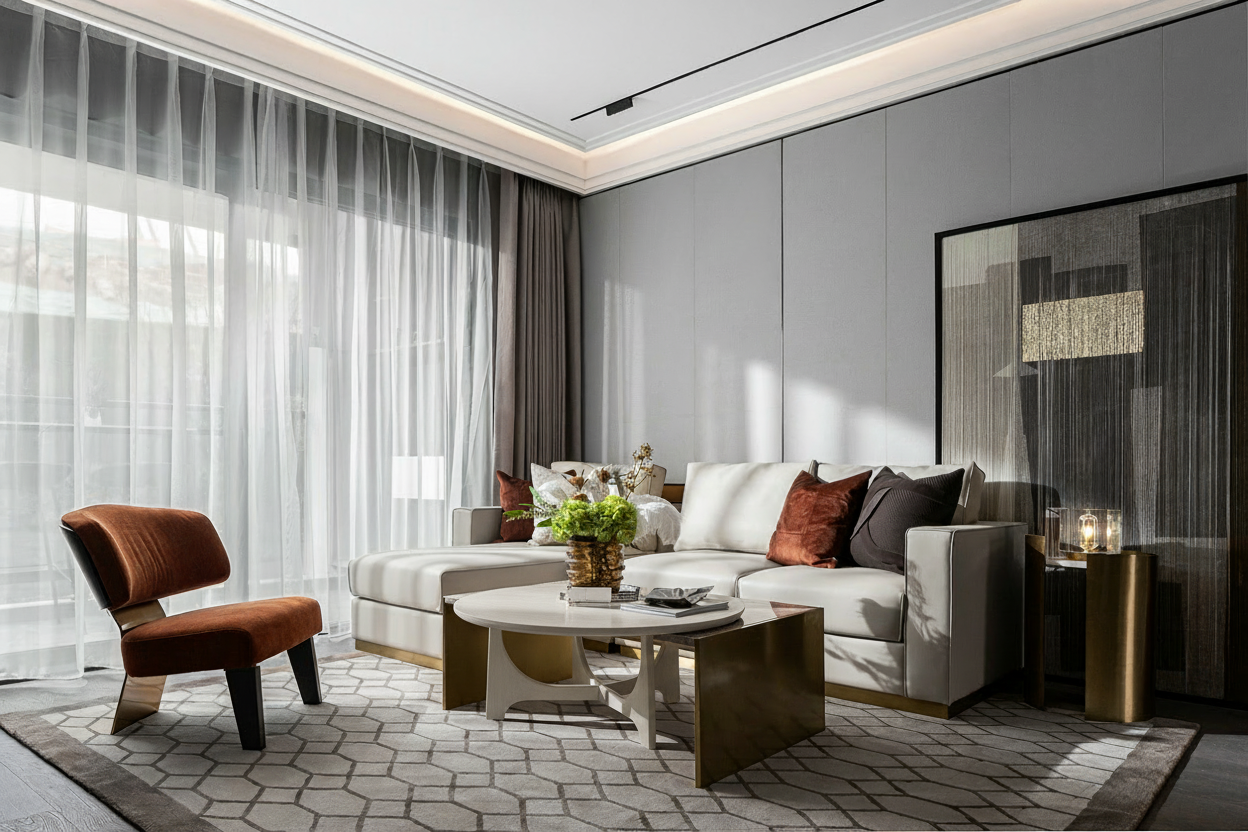
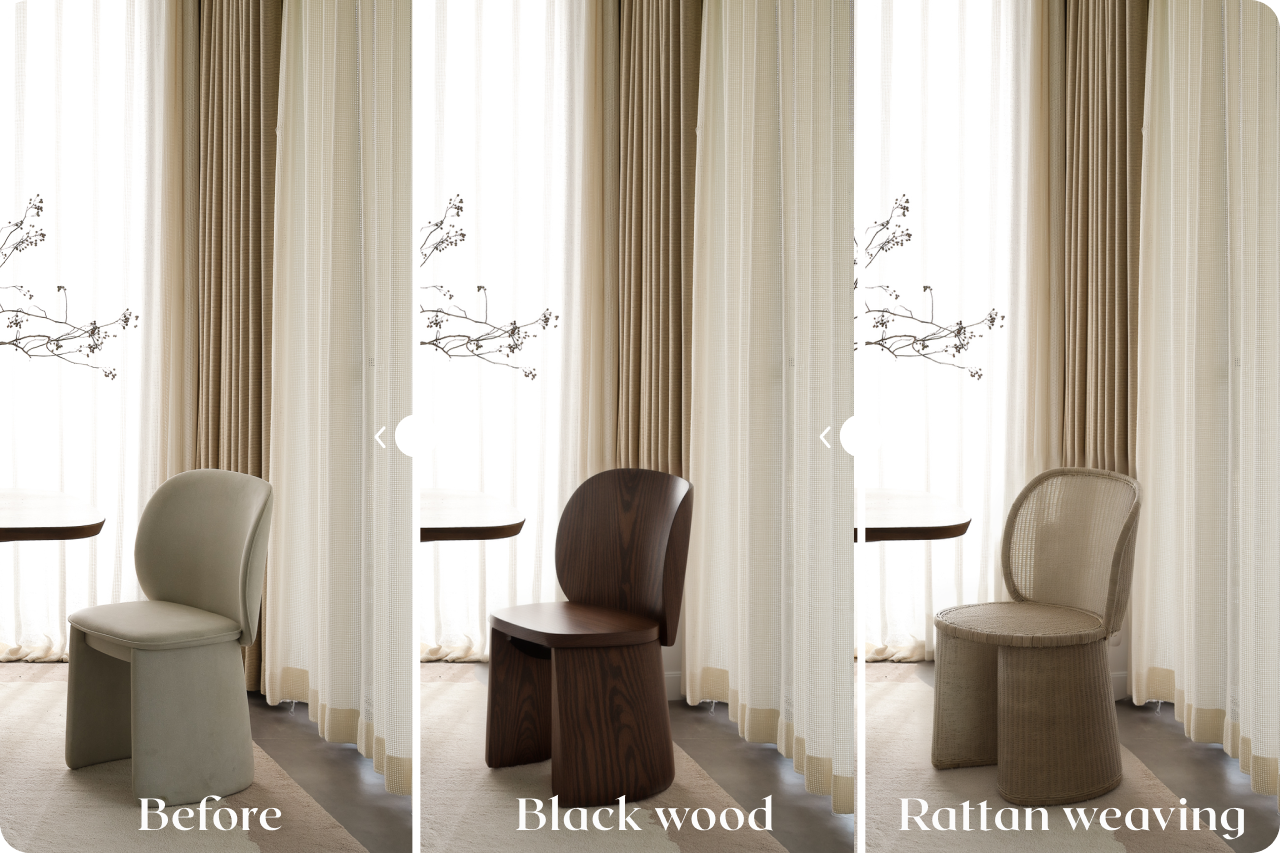
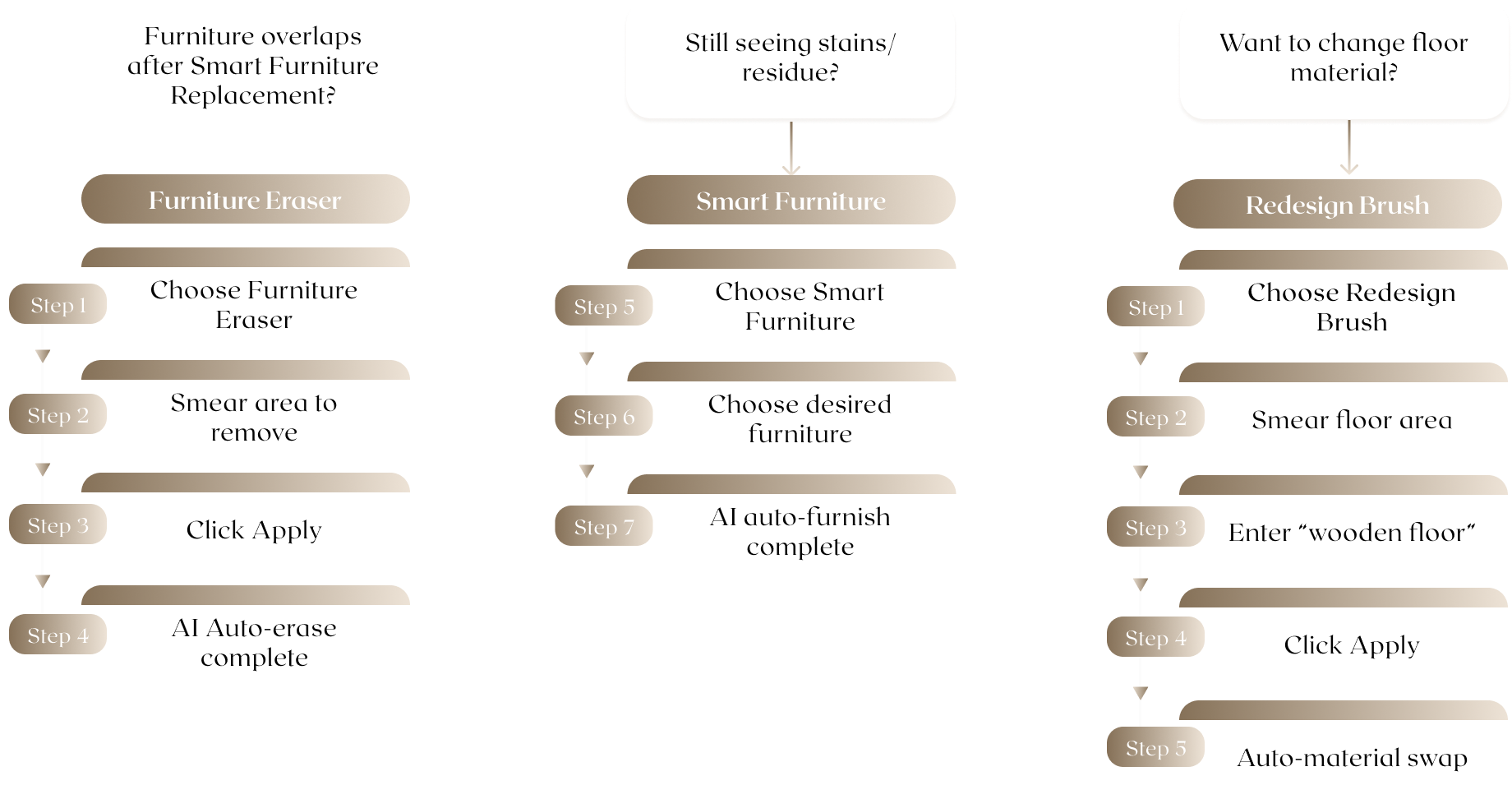
If Smart Furniture replacement creates overlap, unnatural edges, or poor blending, first use Smart Eraser to roughly brush the original furniture area. Once removed, run Smart Furniture again to place a new piece. The result will look cleaner and more natural.

Fix overlap with one click
Swap in a larger new piece instantly
Furniture overlap example

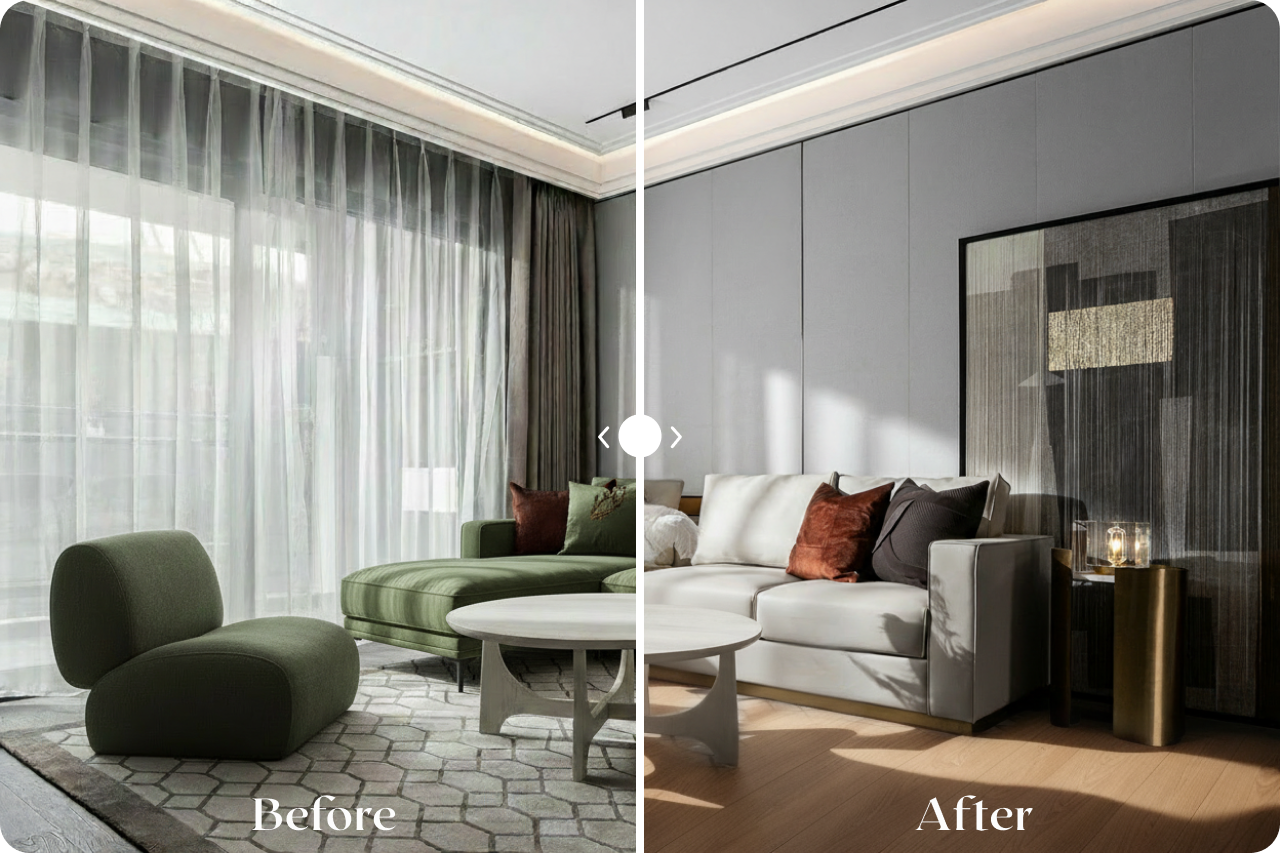
Want to change flooring materials?

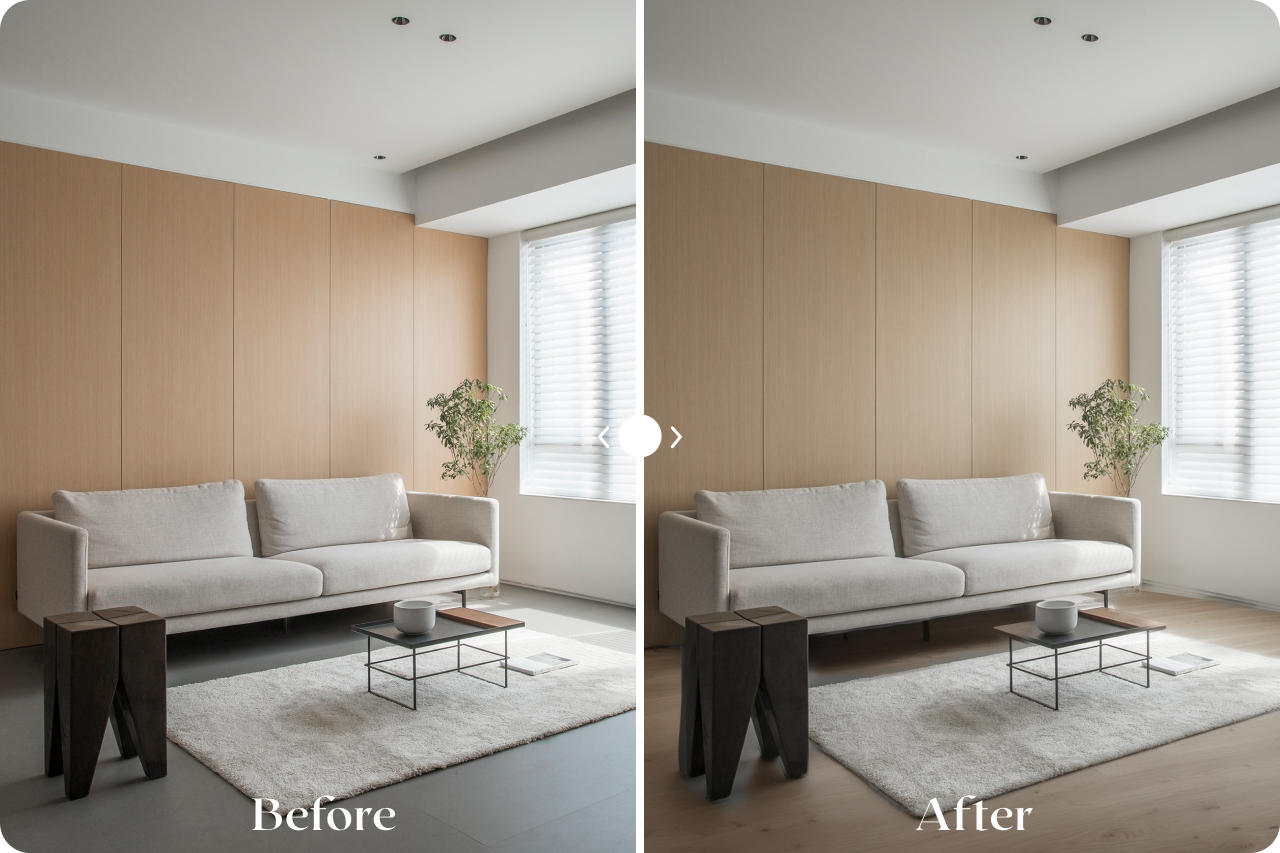
Use the Redesign Brush to replace flooring in one click

To change flooring, use the Redesign Brush and roughly paint the floor area. Enter the desired material in the text field and click “Apply.” In seconds, the system generates the new floor and blends it naturally. This feature isn’t limited to floors—any brushed area can be transformed by text prompt. Combine with Smart Furniture for a complete style refresh.

Redesign Brush demo 1 Redesign Brush demo 2 Redesign Brush demo 3
Quickly test different materials and colors
Compare multiple style combinations
Reduce trial‑and‑error risk

Advanced Smart Furniture + Smart Eraser + Redesign Brush Tutorial

How to fix overlap and change flooring fast

Advanced Smart Furniture, Smart Eraser, and Redesign Brush workflow

Frequently Asked Questions

Q1: How do I fix overlapping or odd furniture results?

First, use Smart Eraser to brush over the original furniture area and apply. After it’s removed, run Smart Furniture again and place a new piece. The result will be cleaner and more natural. See example tutorial ↗︎

Q2: Is it normal to see stains or artifacts after removing old furniture?

Yes, that’s normal. Just run Smart Furniture again and place a suitable item in the same area. The scene will be regenerated with cleaner details. See example tutorial ↗︎

Q3: Can I replace multiple furniture items at once?

Yes. You can erase a whole set of old furniture (e.g., chairs plus sofa), then use Smart Furniture to choose new items for each. You’ll see the full refreshed layout in seconds. See example tutorial ↗︎

Q4: How do I quickly change flooring material?

Select the Redesign Brush, roughly paint the floor area, enter “wood flooring” (or your preferred material), then click “Apply.” The floor updates in seconds. See example tutorial ↗︎

Q5: Is the Redesign Brush only for floors?

No. Any brushed area can be transformed with a text prompt—different colors, textures, or styles. Combine it with Smart Furniture to create your ideal interior. See example tutorial ↗︎